
Log expenses by voice in the Moneypet budget app: say "$15 at the supermarket yesterday" and you're done / How to use Chat to log
Updated
In the Moneypet budget app, you can log expenses just by talking into your phone's mic. Say something like "Meat and veggies at the supermarket yesterday, $15.40" and the app picks out the date, amount and category for you.
Use the "Speak" button on the Moneypet Entry screen
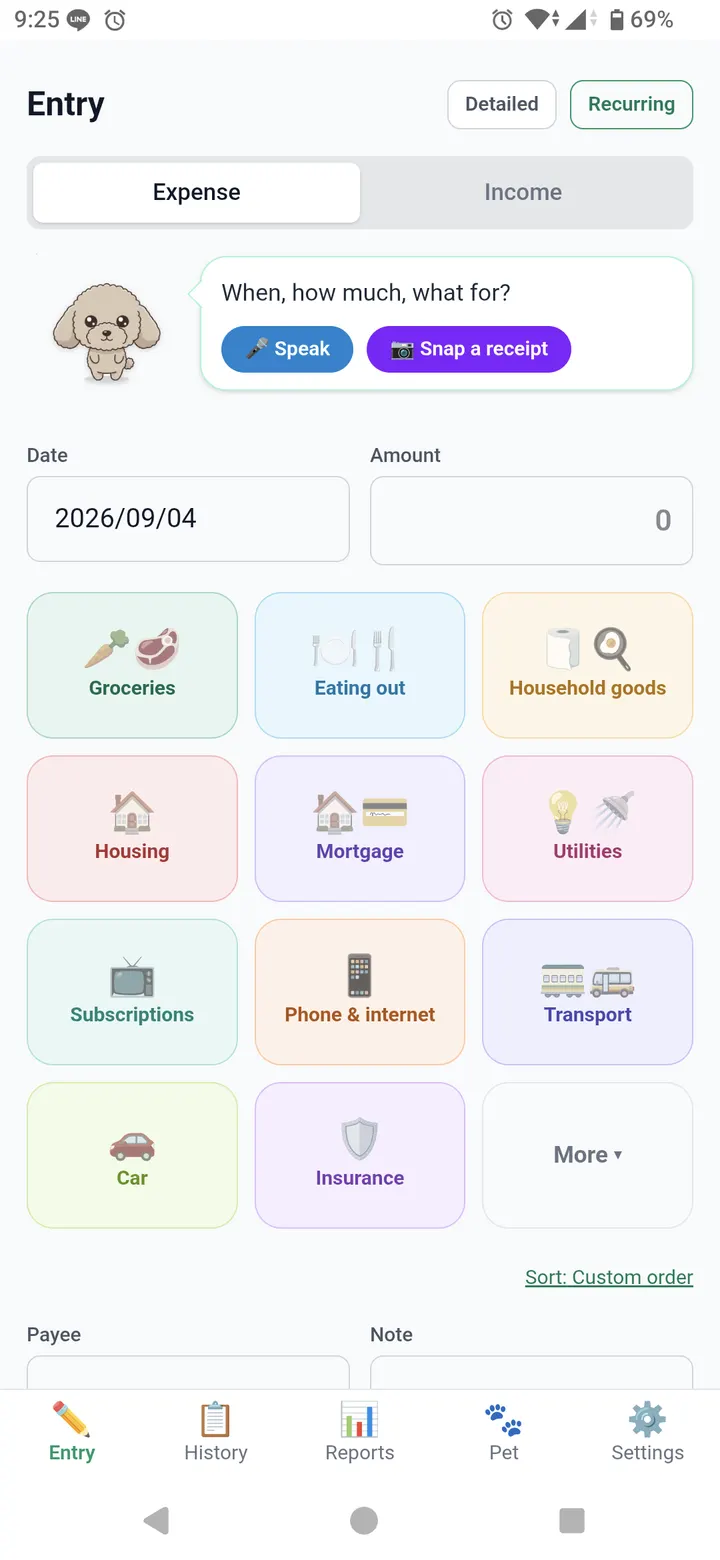
- 1Open the "Entry" tab at the bottom and tap "🎤 Speak" in your pet's speech bubble.
- 2The mic turns on. Say when, where, what for and how much, like "Meat and veggies at the supermarket yesterday, $15.40."
- 3The date, amount and category it picked up appear in a confirmation box. If they're right, just save. If something's off, you can change it right there.
You don't need to say everything. If you just say "Lunch $12," it fills in the gaps, using today's date and a category like Dining out.
If what you said includes a payee or a note, those words appear in a list below, so you can add them to the payee or note with a tap.
Examples of what to say
| What you say | What gets entered |
|---|---|
| Lunch $12 | Today · Dining out · $12 |
| Meat and veggies at the supermarket yesterday, $15.40 | Yesterday · Groceries · $15.40 (Payee: supermarket) |
| Train fare $2.75 | Today · Transportation · $2.75 |
| Paycheck $3,500 | Today · Income (Paycheck) · $3,500 |
What it picked up always appears in the confirmation box before saving. If the category isn't what you expected, fix it there and then save.
Log by chatting with your pet (Chat to log)
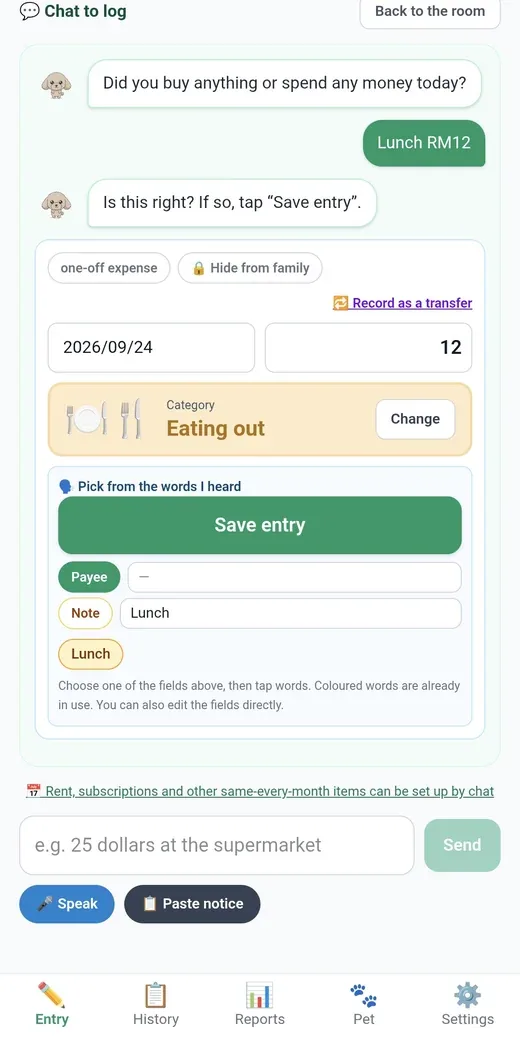
Choose "Chat to log" with the switch at the top of the Entry screen and the screen changes from Quick entry to a conversation with your pet. Say or type something like "Lunch $12" and your pet reads it and logs it for you. You can keep adding as many entries as you like.
In chat form, your pet replies every time you log something, so it feels less like doing your budget. Your pet also keeps what you talked about as a diary: look back day by day in "Chat diary with your pet" in the Pet room, or in the calendar on the History tab.
If "Speak" doesn't appear on iPhone or iPad
On iPhone and iPad, the "Speak" button may not appear in the App Store app or in the app added to your home screen. In that case, you'll see a "Type or dictate with the keyboard mic" box instead. Tap it, press the microphone button on the keyboard, speak, then tap "Apply" and it's entered the same way.
About voice input limits
Free members can use voice reading a limited number of times per day. Premium members can use it more than free members (there's a 7-day free trial). Even for free members, voice input can be used more times than receipt scanning. Manual entry has no limit: you can log as many entries as you like, any time.
Log expenses in a budget app just by talking. Try starting with "Lunch $12."