
Log receipts in the Moneypet budget app: just snap a receipt to fill in the amount, date and category
Updated
In the Moneypet budget app, you can log expenses just by snapping a receipt in the app. AI reads the receipt and fills in the amount, date, store name and category, so all you do is check and save.
Snap a receipt in Quick entry
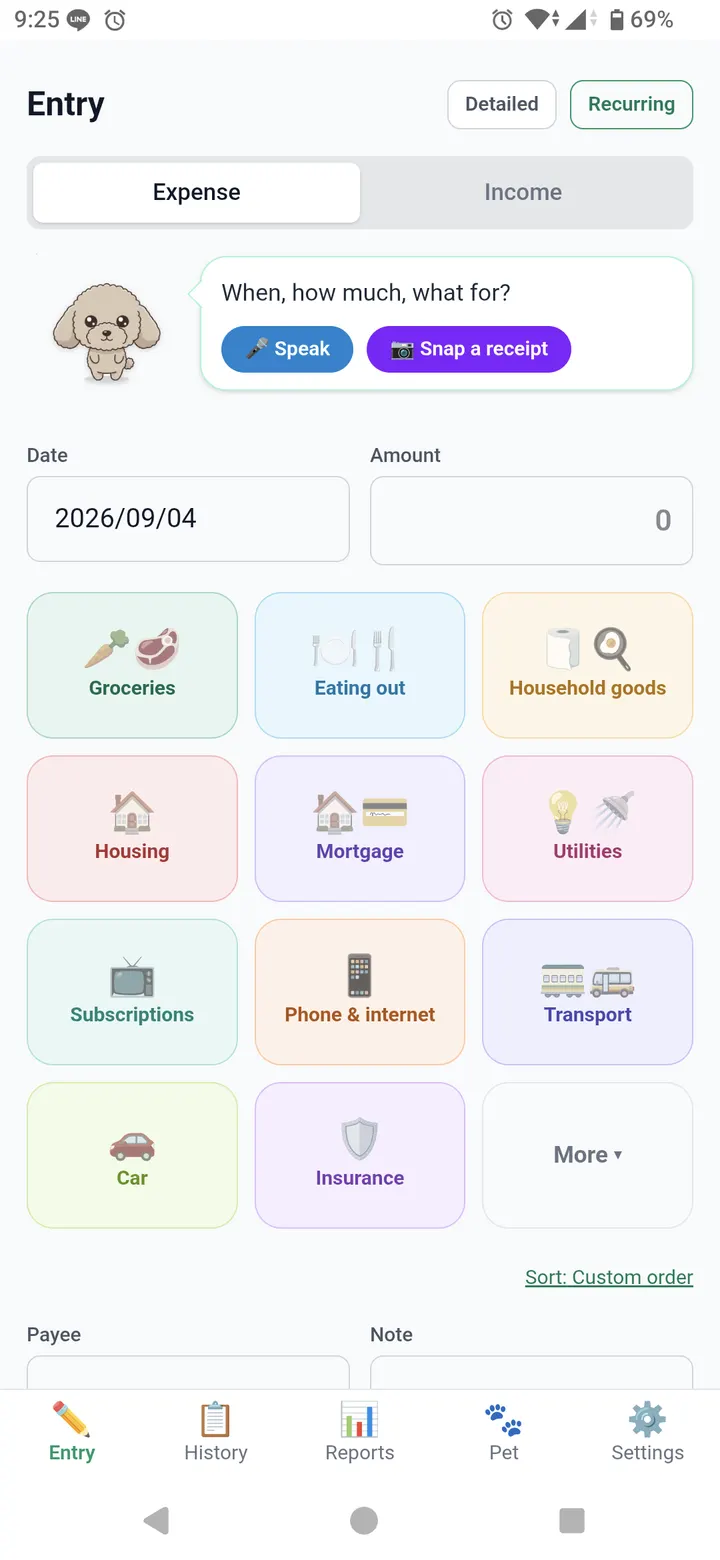
Open the "Entry" tab at the bottom and tap "📷 Snap a receipt" in your pet's speech bubble to open the camera. Take a photo of one receipt and reading starts. Within a few seconds to around ten, the amount, date, category and more are filled in.
Snap receipts in Detailed entry (one or several)
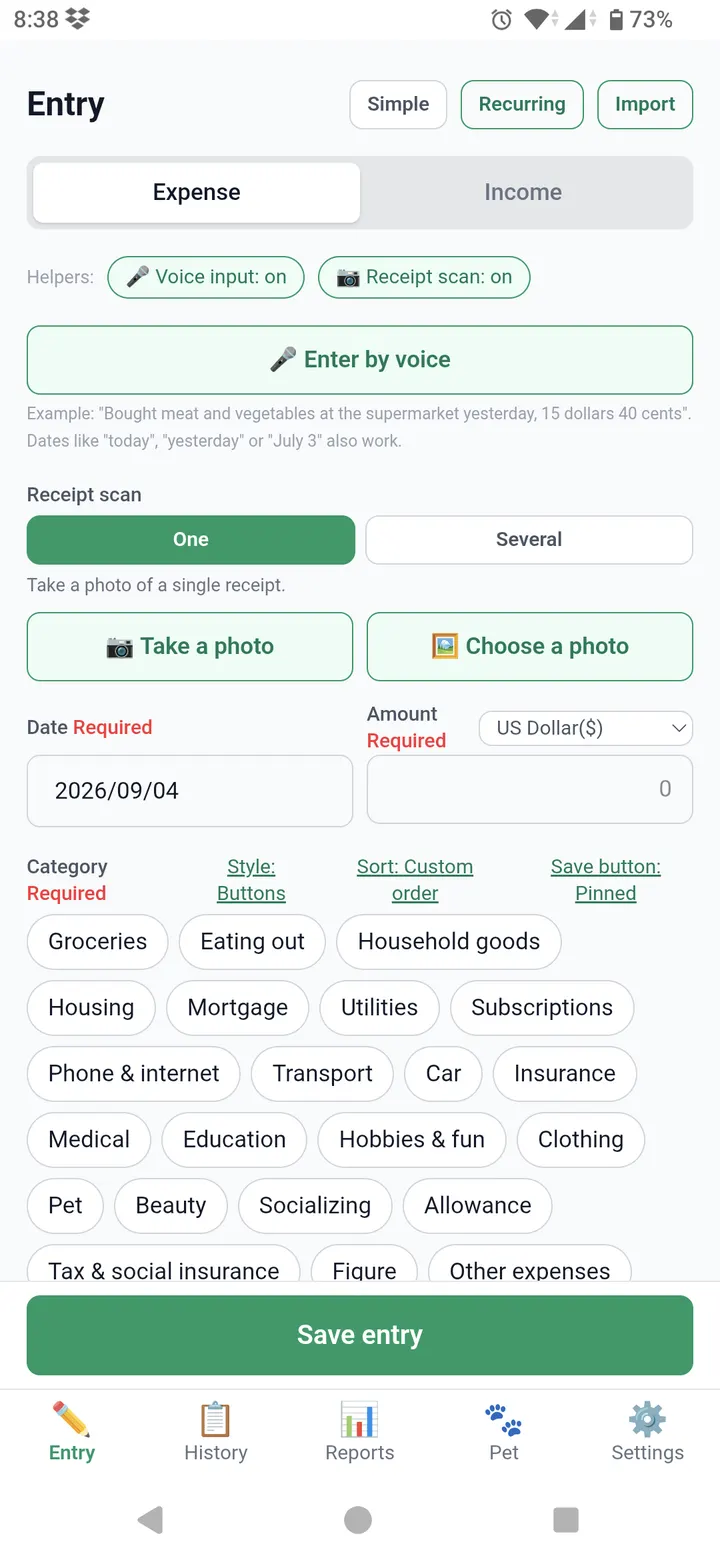
- 1Tap "Switch input" at the top of the Entry screen to change to Detailed entry.
- 2Under "Receipt scan," choose "One" or "Several."
- 3Tap "📷 Take a photo" to shoot it, or "🖼️ Choose a photo" to pick one you already took.
- 4The amount, date, store name and category are filled in. Check them and save.
On days when you can't log right away, just take a photo of the receipt and read it later with "Choose a photo."
Read several receipts at once
Choose "Several," lay out a few receipts and take one photo of them all. The AI reads each receipt separately. They're filled in one by one starting with the first, and when you check and save one, it moves on to the next. Tap "Skip this receipt" for any you don't want to save.
If one receipt mixes categories, like groceries and household supplies, it may be split by category. In that case, check the details and tap "Save all." If it's split into several categories and you delete one of them, the amount of the other category is adjusted automatically so it matches the receipt total.
If it can't read the receipt, retake the photo in a bright place with the whole receipt in the frame.
Taiwan e-invoices are read from the QR code
If you use Taiwan dollars, snapping a Taiwanese e-invoice reads the date, total and items from the QR code at the bottom. This doesn't count toward your AI usage.
About receipt scan limits
Free members can scan receipts a limited number of times per day. Premium members can scan more (there's a 7-day free trial). Receipt scanning isn't available in trial mode (before you sign up), so please sign up first.
Receipt scanning FAQ
The "Snap a receipt" button doesn't appear
Open the Settings tab at the bottom. In Settings, open "Receipt scan (OCR)" and make sure "Use receipt scanning" is turned on. In Detailed entry, it appears when "📷 Receipt scan: on" is shown under "Helpers" at the top.
What if the category it picked is wrong?
Before saving, you can choose a different category right there. After saving, open the entry from the "History" tab at the bottom and fix it.
Is there a way to scan receipts without worrying about limits?
Set up your own API key (Google) under "Receipt scan (OCR)" in Settings. Scans then use Google's free tier, with no daily limit.
Keep in mind that Google's free tier tends to give errors when it's busy with many users.
If that happens, the receipt is read with Moneypet's own API key instead, which uses one of your free scans.
Log expenses in your budget app just by snapping a receipt. Try it with today's receipts.