
How to log your first expense in Moneypet: enter an amount and tap a category
Updated
Moneypet, the budget app with a pet, has four entry screens. This page explains Quick entry, the one you see when you first open the app. Pick the date, enter the amount and tap a category, and your expense is saved and shows up in your reports.
Log an expense in 3 steps (2 steps if it's today)
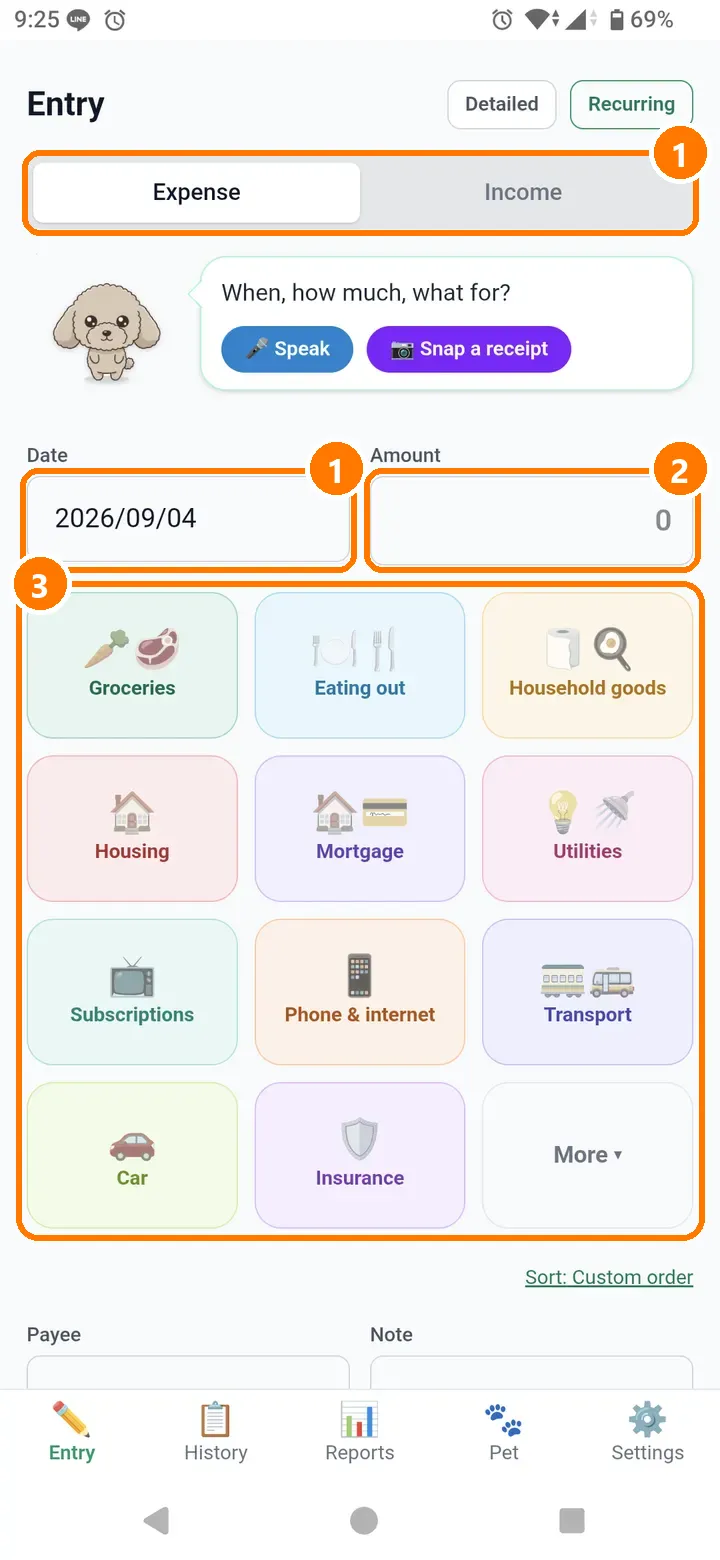
- 1Open the "Entry" tab at the bottom. (When you open the app, this entry screen appears first. If you switched to calculator entry, chat entry or detailed entry, the screen you used last opens instead.) At the top, choose "Expense" or "Income" depending on whether money went out or came in ("Expense" is selected at first).
- 2Type what you spent in "Amount". Today's date is already filled in, so you only need to change it for earlier days.
- 3Tap the matching category button, such as "Groceries" or "Eating out". The entry is saved the moment you tap it and appears in your reports and History.
You don't have to fill in the payee or a note (like "supermarket" or "lunch") to save. Add them before tapping a category only if you want them for later.

Your pet comments after you save
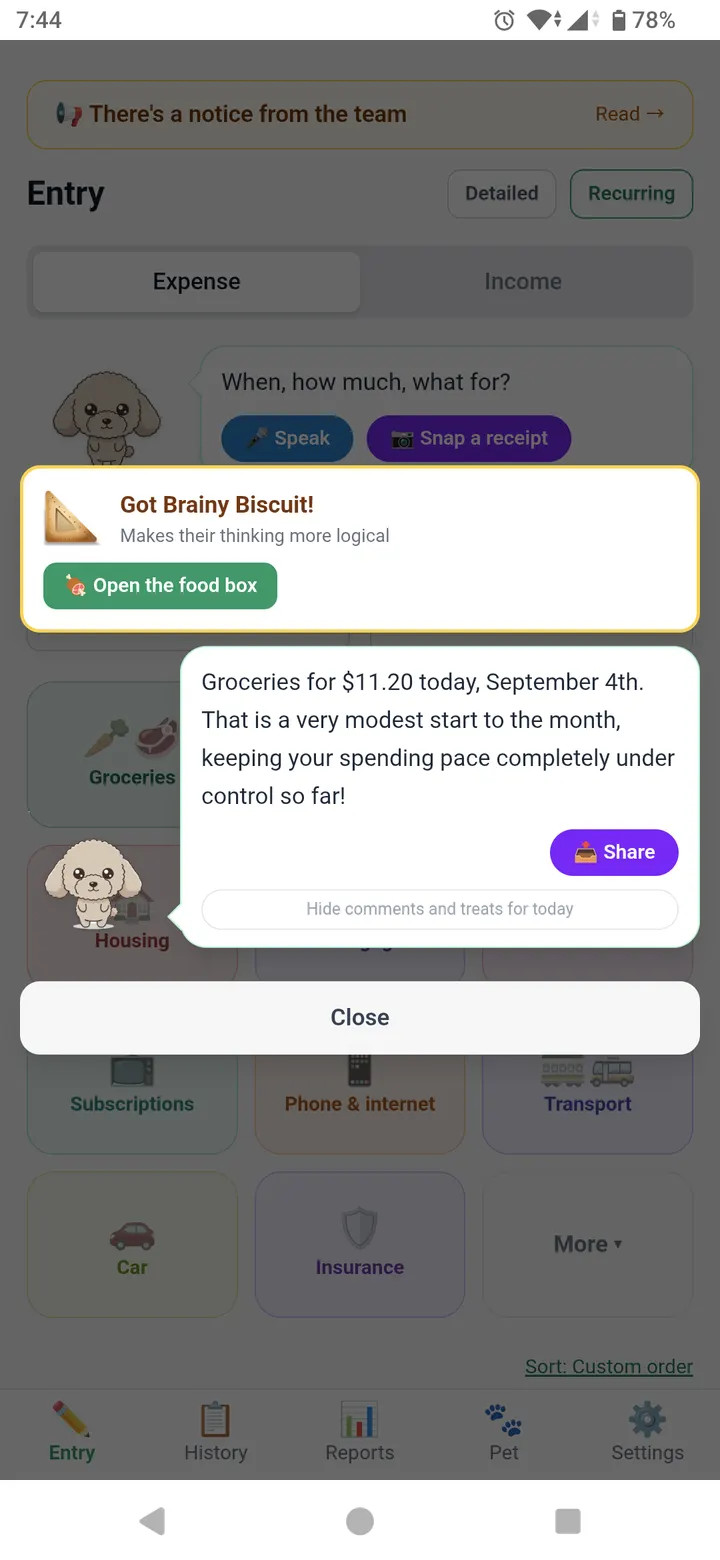
After you save, your pet says something about that entry. It warns you if you're overspending and praises you when things are on track. The totals for the same category this month and last month appear side by side, so you can spot overspending right away. (If you set a budget, a budget graph appears too.)
The food you earned appears at the top of the screen. You can feed it to your pet on the Pet screen, and different kinds of food gradually change your pet's personality and the way it talks.
Your pet's comment changes every time you log something. Hearing something new each time gives you a reason to keep budgeting.
FAQ
Can I make the text bigger?
Tap the "Aa" button at the top left to change the text size.
What if I tap the wrong category?
Open the entry from the "History" tab at the bottom. You can change the category, amount and date, or delete it.
What if I can't find the category I want?
Tap "More" at the end of the buttons to see other categories. You can also reorder categories in Settings to bring the ones you use most to the front.
Do I have to enter rent and my paycheck every month?
No. Add them under "Recurring" at the top right of the Quick entry screen and they're entered automatically every month. You can also choose every two months, yearly and more.
Can I turn off comments and food for a day?
Tap "Hide comments and treats for today" under the comment after logging, and comments and food won't be shown for the rest of that day. You still get the food even while it isn't shown. It's handy when you want to log a lot of entries in a row. If you want comments back, tap the notice "Comments and treats are off for today (tap to turn back on)" on the Entry screen. Everything turns back on automatically the next day (this setting applies only to that device).
Enter an amount, tap a category, done. Start budgeting with your pet today.