
View and edit entries in the Moneypet budget app: History and the calendar
Updated
The "History" tab at the bottom of the Moneypet budget app shows the entries you've logged, month by month. Search and filter to find a transaction, tap one to edit it, or switch to the calendar to see your spending day by day.
Search, filter and sort
- Use ◀ ▶ at the top to switch months. With "Set a date range," you can show entries for any period you like.
- Type a word in "🔍 Search category, payee, note" to show only the entries that contain it.
- Filter by category, sub-category or account. While filtering, the total for the filtered entries is shown too.
- Sort by date (newest or oldest first) or by amount (largest or smallest first). Your choice is remembered the next time you open it.
- To hide the future months created by recurring entries, check "Hide future entries."
Edit or delete entries
Tap an entry to change the amount, date, category, payee and so on, or to delete it. You can also mark it as one-off, or, if you share with family, set it to "🔒 Hide from family."
To change the category of all the entries shown at once, use "Change the category of all shown entries." It's safest to narrow things down with search or filters first. For one day (24 hours) after the change, you can switch back to the original categories with "Undo" at the top of History (entries you've edited by hand since then stay as they are).
Bulk delete and "Undo"
- 1Tap "Select entries to delete."
- 2Tap the entries you want to delete to select them (there's also "Select all (n) shown").
- 3Tap "Delete (n)."
For one day (24 hours) after deleting, you can restore entries with "Undo" at the top of History. After that, they can't be restored. Recurring entries that have already been recreated for the same day aren't restored, to avoid duplicates.
View as a calendar
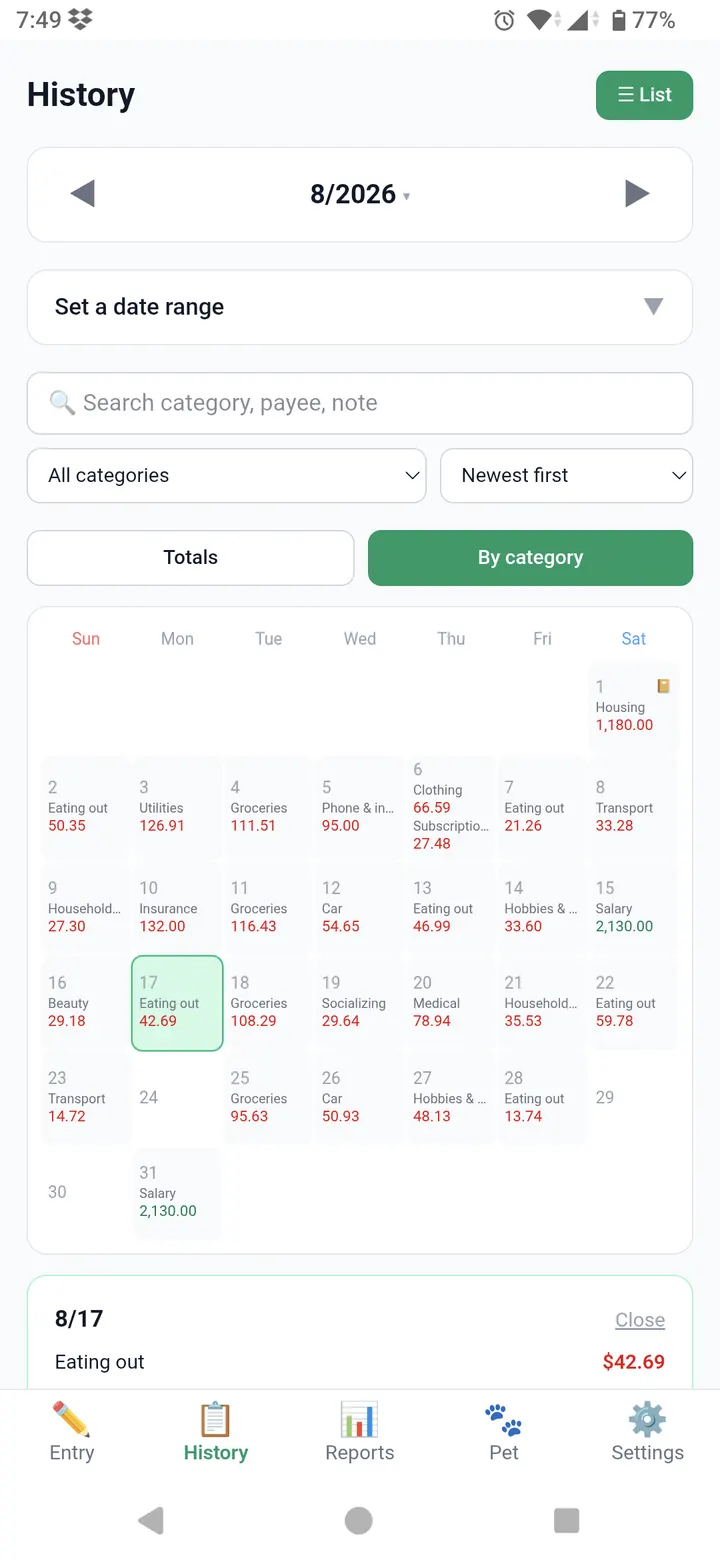
Tap "📅 Calendar" at the top right of History to switch to a monthly calendar (tap "☰ List" to go back). "Totals" shows each day's total income and spending, and "By category" lets you pick a category and see that day's amount for it.
Tap a day to see its breakdown, and edit or delete each entry. Days when you chatted with your pet get a 📔, and you can read that day's chat diary with your pet right there.
Export the transactions you've logged (CSV, Excel, PDF)
Use the buttons at the bottom of History to export the entries currently shown to CSV or Excel, or print them (PDF). The results of your search, filters and sorting are exported as is.
You can also make "Ledger PDFs" with separate pages for each category or account (a Premium feature). They can serve as reference material for your tax return, but for questions about the filing itself, please consult your tax office or a tax accountant.
FAQ
I want to restore a deleted entry
Within one day of deleting, you can restore it with "Undo" at the top of History.
The Calendar button doesn't appear
You can switch to the calendar only while viewing by month. If you've picked a period with "Set a date range," switch back to the monthly view.
Look back at everything you've logged in your budget any time, in History or on the calendar.