
Share the Moneypet budget app with family: see each other's budgets with an invite code
Updated
Create a family group in the Moneypet budget app and the family members you invite can see each other's budgets. Everyone logs on their own phone, and you can also check your whole family's income and spending together.
Create or join a family group in Moneypet
- 1The first person enters a group name (e.g. The Smiths) under "Create a family group" in "Family sharing" in Settings, then taps "Create."
- 2An invite code appears. Send it to your family with "Share 📤," "Copy" or "Email."
- 3After starting Moneypet, family members enter the code under "Settings → Family sharing → Join with an invite code" and tap "Join."
Once in the group, you can see each other's entries and reports. Each person can edit only the entries they logged themselves.
See your family's income and spending
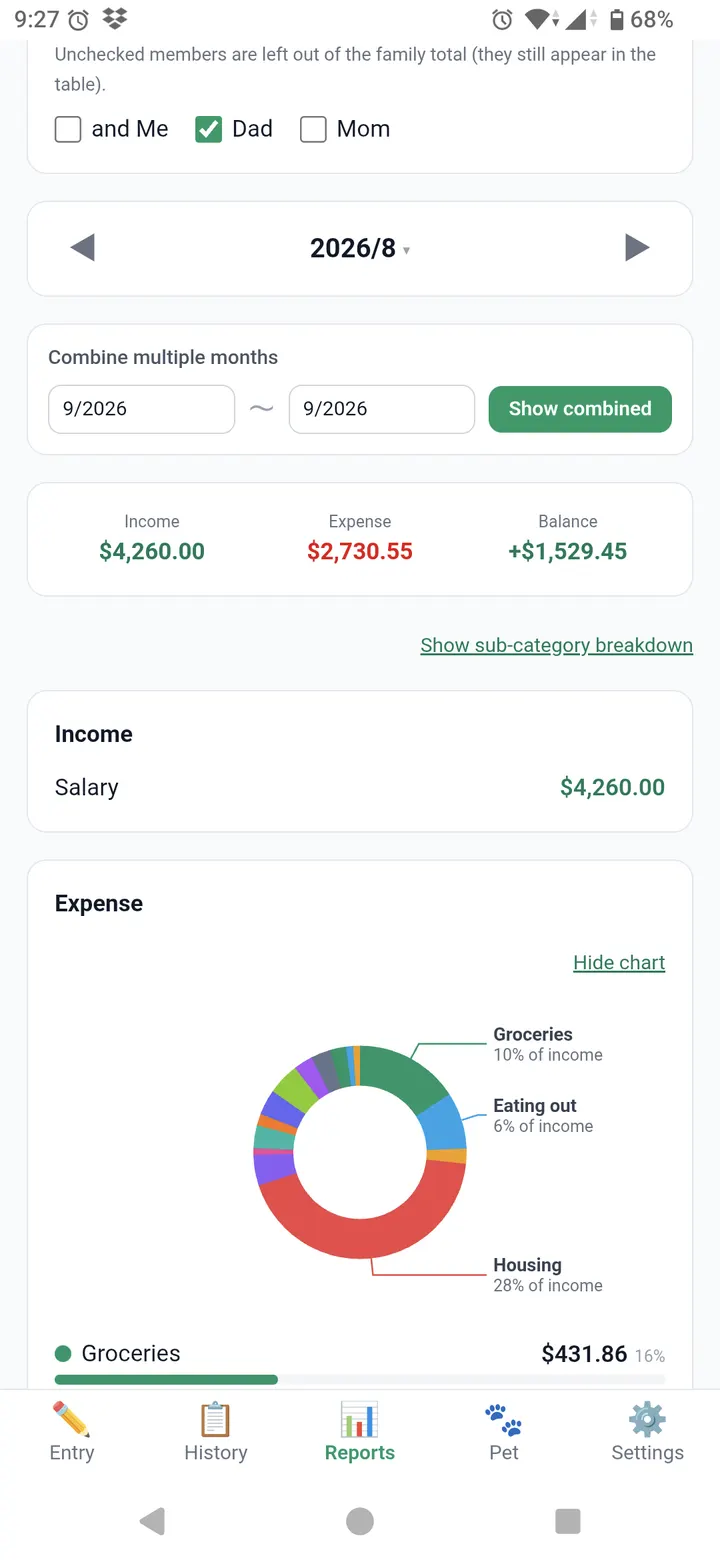
Open "Family" in Reports to see each family member's income and spending, plus the combined totals for the members you choose. Uncheck someone under "Members included in the total" to leave them out of the combined family total (they still appear in the table).
Comparisons (vs previous month, vs budget, etc.) and the yearly trend can also be viewed as family totals. For categories a family member added on their own, you can choose which of your categories to group them under in Categories in Settings.
Keep entries private with "Hide from family"
For entries you want to keep to yourself, turn on "🔒 Hide from family" when logging. You can also turn it on later by opening the entry in History. These entries are still counted in your own reports, but they don't appear in reports your family sees or in family totals.
In Sub-categories in Settings, you can set a sub-category you created to "Hide from family" for every entry logged with it. All entries with that sub-category are then hidden from your family at once.
Nicknames for family members
On the family screen in Settings, you can give each member a "Nickname" (e.g. Dad). Nicknames are used only on your screen and don't change the name on theirs. They're also used when switching reports and in AI advice.
Budget and closing day when sharing with family
Use "Share a budget with your family" on the Budget screen to use the same budget as your family. The closing day is the same for everyone in the group, so if another family member changes it, it changes for everyone in the family group.
FAQ
Can my family change my budget entries?
No. You can only view your family's entries, and each person can edit only their own.
Does each family member need a Moneypet account?
Yes. Each family member signs up for their own Moneypet account and joins the same group with the invite code.
Can three or more people share one budget?
On a free membership, the Moneypet budget app lets up to 2 people share a budget. If at least one person in the group is a Premium member, you can create a group where three or more people share one budget.
Each family member's entries come together in one shared budget. Share yours with an invite code.